Plate Recognizer converts vehicle images and video into license plate recognition results. To set it up, choose Snapshot for still images or Stream for live cameras and video. Then create an account, obtain the appropriate credentials, send an image or connect a camera, and verify the output before integrating it with your application. This tutorial walks through three practical setups: 1. Recognize a plate in a photo using Snapshot Cloud. 2. Process photos locally with Snapshot SDK and Docker. 3. Connect an RTSP camera using Stream on-premises. It also explains when to consider Stream Cloud, how to troubleshoot common problems, and what to check before production use. Documentation reviewed: 6 November 2026. This is a documentation-based tutorial, not a report of a live deployment test. Product interfaces, licensing, and Docker images can change; consult the linked official references for your environment.
1. Choose the right Plate Recognizer product
License plate recognition is commonly called ALPR—automatic license plate recognition—or ANPR—automatic number plate recognition. In this guide, those terms refer to the same general task: detecting and reading vehicle registration plates.
The first setup decision is your input type and where processing should happen.
Snapshot is an image-recognition service. Stream handles video processing. You do not need to complete the Snapshot SDK installation before installing Stream.
Product credentials are not interchangeable. Snapshot SDK requires an SDK license. Stream requires the appropriate Stream license, and Stream Cloud uses a different license from Stream on-premises.
For the quickest first result, start with Snapshot Cloud. If your main goal is recognizing vehicles entering a car park, proceed to the Stream section after preparing your camera and license.
Official references: Snapshot getting started and Stream getting started.
- Your goal — Product — Where processing runs
- Read plates from individual photos without installing a recognition server — Snapshot Cloud — Plate Recognizer’s hosted API
- Read plates from photos on your own infrastructure — Snapshot SDK — Your compatible Docker host
- Read plates from a live camera or supported stored video — Stream on-premises — Your own server or supported cloud host
- Process a live camera without maintaining the recognition server — Stream Cloud — Plate Recognizer’s infrastructure
2. Prepare your account and equipment
For a first image-recognition test
You need:
Open your API token page after signing in. Treat the token as a password: do not publish it, commit it to source control, or expose it in browser-side JavaScript.
- A Plate Recognizer account with access to Snapshot Cloud.
- Your API token and available account allowance.
- An image containing a clearly visible plate that you are authorized to process.
- An internet connection and curl.
For local Docker processing
You also need:
The Docker examples below target Linux with Bash on a compatible Intel x86 host. They are not universal commands for Windows PowerShell, Raspberry Pi, Nvidia Jetson, or GPU installations. Use the vendor’s architecture-specific instructions for those systems.
Plate Recognizer also recommends its Installer for supported setups if you prefer not to manage Docker commands manually.
- A compatible machine with Docker installed and running.
- The license for the product you are installing.
- Internet access for image download and initial activation.
- Persistent storage for licensing, configuration, and outputs.
For a live camera
Prepare:
Do not assume that every camera uses the same RTSP URL. Obtain the correct address from the camera’s documentation or administrator.
- A camera with a supported video feed, such as RTSP.
- The exact RTSP URL, including its stream path.
- Camera credentials where required.
- Network access from the recognition host to the camera.
- A safe way to test authorized vehicle passages.
3. Set up Snapshot Cloud and recognize your first plate
Snapshot Cloud is the simplest starting point because you do not need to install the recognition engine locally.
1. Prepare a test image
Save an authorized vehicle photo as car.jpg in your working directory. Choose a clear image for the first test: the plate should not be heavily blurred, clipped, hidden, or overexposed.
Confirm the file exists:
ls -l car.jpgAlternatively, download the vendor’s demonstration image:
curl --fail --location \
  https://app.platerecognizer.com/static/demo.jpg \
  --output car.jpg
This is a convenient connectivity test, not a representative accuracy benchmark for your cameras.
2. Load your API token
In Bash, use a hidden prompt rather than typing the token directly into a saved command:
read -r -s -p "Plate Recognizer API token: " PLATE_RECOGNIZER_TOKEN
printf '\n'
export PLATE_RECOGNIZER_TOKEN
This avoids recording the literal token in your shell history. It does not make environment variables a production secret store; privileged users and diagnostic tools can still expose credentials.
3. Send the image to the API
Run:
curl --silent --show-error \
  --connect-timeout 10 \
  --max-time 60 \
  --output cloud-response.json \
  --write-out 'HTTP %{http_code}\n' \
  --header "Authorization: Token ${PLATE_RECOGNIZER_TOKEN}" \
  --form 'upload=@car.jpg' \
  https://api.platerecognizer.com/v1/plate-reader/
The request:
The timeout values are tutorial choices, not vendor requirements. Adjust them for your application.
The official Cloud reference documents a 201 success response. Do not treat a saved JSON file alone as proof that recognition succeeded: unsuccessful requests can also return JSON.
- Sends car.jpg as a multipart form upload.
- Authenticates using Authorization: Token ….
- Writes the response body to cloud-response.json.
- Prints the HTTP status so you can distinguish a successful request from an API error.
4. Inspect the response
View the saved response:
cat cloud-response.jsonFor formatted output, if Python 3 is installed:
python3 -m json.tool cloud-response.jsonThe following is a simplified, invented illustration of the response structure, not an actual result from running this tutorial:
{
  "results": [
    {
      "plate": "abc123",
      "score": 0.95,
      "box": {
        "xmin": 100,
        "ymin": 200,
        "xmax": 250,
        "ymax": 250
      }
    }
  ]
}
Key fields include:
A confidence score is not a guarantee of correctness or proof that a vehicle is authorized. Validate results against your use case.
A successful request can return an empty results array. That is different from a failed HTTP request.
- Field — What it tells you
- results — The collection of recognition results
- plate — Recognized plate text
- score — The model’s plate-reading confidence score
- box — Plate bounding-box coordinates in the image
- candidates — Alternative plate readings when returned
- region — Region information when returned
5. Handle zero, one, or multiple results
After confirming the HTTP request succeeded, this small Python example reads the saved file without assuming there is always a first plate:
import json
from pathlib import Path

payload = json.loads(Path("cloud-response.json").read_text())
results = payload.get("results")

if not isinstance(results, list):
    raise SystemExit("Unexpected response. Check the HTTP status and response body.")

if not results:
    print("Request succeeded, but no plate was returned.")
else:
    for result in results:
        print({
            "plate": result.get("plate"),
            "score": result.get("score"),
            "box": result.get("box"),
        })
For a production integration, also handle timeouts, unsuccessful HTTP statuses, invalid JSON, and service interruptions.
6. Add region hints only when appropriate
The API supports region hints. For example, if the vehicles are expected to have British plates, add this form field to the request:
--form 'regions=gb'
Use the official country and region codes. Avoid applying an incorrect hint to a site that regularly receives vehicles from several countries.
Checkpoint: You should now have a successful API response and understand how to distinguish a plate result, no detection, and an API error.
Reference: Snapshot Cloud API documentation.
4. Install Snapshot SDK for local image processing
Snapshot SDK runs the image-recognition service in Docker on your infrastructure. The vendor states that internet access is needed during installation and that recognition can operate offline afterward.
1. Check Docker and product compatibility
Install Docker using the instructions appropriate to your system, then run:
docker --version
docker info
If docker info cannot connect to the daemon, resolve Docker’s installation, service, or permissions problem first.
Review the Snapshot system requirements. Do not size a production server solely from a single successful image test.
2. Obtain the SDK credentials
Open the Snapshot SDK dashboard and obtain your API token and SDK license key.
Load them in the same Bash session:
read -r -s -p "API token: " TOKEN
printf '\n'
read -r -s -p "Snapshot SDK license key: " LICENSE_KEY
printf '\n'
export TOKEN LICENSE_KEY
3. Pull and start the container
For the compatible Intel CPU installation covered here:
docker pull platerecognizer/alpr

docker run -d \
  --name plate-recognizer-snapshot \
  --restart unless-stopped \
  -p 127.0.0.1:8080:8080 \
  -v license:/license \
  -e TOKEN \
  -e LICENSE_KEY \
  platerecognizer/alpr
This adapts the vendor’s manual command by adding a container name, detached operation, and localhost-only port binding.
This example is for a first installation. If you already have a licensing volume or deployment, follow the vendor’s existing-installation guidance rather than creating competing containers.
Security note: Docker administrators can inspect container environment variables. Keep Docker access restricted and use an appropriate secrets-management approach for your deployment.
- -d runs the container in the background.
- --restart unless-stopped provides Docker’s corresponding restart policy.
- 127.0.0.1:8080:8080 restricts the published API port to the host’s loopback interface.
- license:/license preserves licensing data in a named volume.
- -e TOKEN and -e LICENSE_KEY pass the exported variables into the container.
4. Check startup
Run:
docker ps -a --filter name=plate-recognizer-snapshot
docker logs --tail 100 plate-recognizer-snapshot
Look for startup or activation errors. A running container is useful evidence, but the next API request is the functional test.
5. Send an image to the local API
From the same host:
curl --silent --show-error \
  --connect-timeout 10 \
  --max-time 60 \
  --output local-response.json \
  --write-out 'HTTP %{http_code}\n' \
  --form 'upload=@car.jpg' \
  http://localhost:8080/v1/plate-reader/
Inspect local-response.json as you did for the Cloud response. The vendor’s basic local API example does not require the Cloud authorization header; do not assume that a publicly reachable local endpoint is protected by your account token.
Because the Docker port is bound to localhost, a different computer cannot use this example endpoint directly. For remote application access, design a private, authenticated network path or protected reverse proxy. Do not simply expose port 8080 to the internet.
6. Preserve your installation details
Record your image version or digest, launch settings, licensing volume, and test outcome. Keep credentials out of the general deployment record.
The untagged image used here follows the default image tag and can change over time. For repeatable deployments, select and record a supported version from the vendor’s image list and test upgrades before rollout.
Checkpoint: A request to the local endpoint should produce a successful recognition response without sending the image to the Snapshot Cloud recognition endpoint.
References: manual SDK installation and on-premises API.
5. Set up Plate Recognizer Stream with an RTSP camera
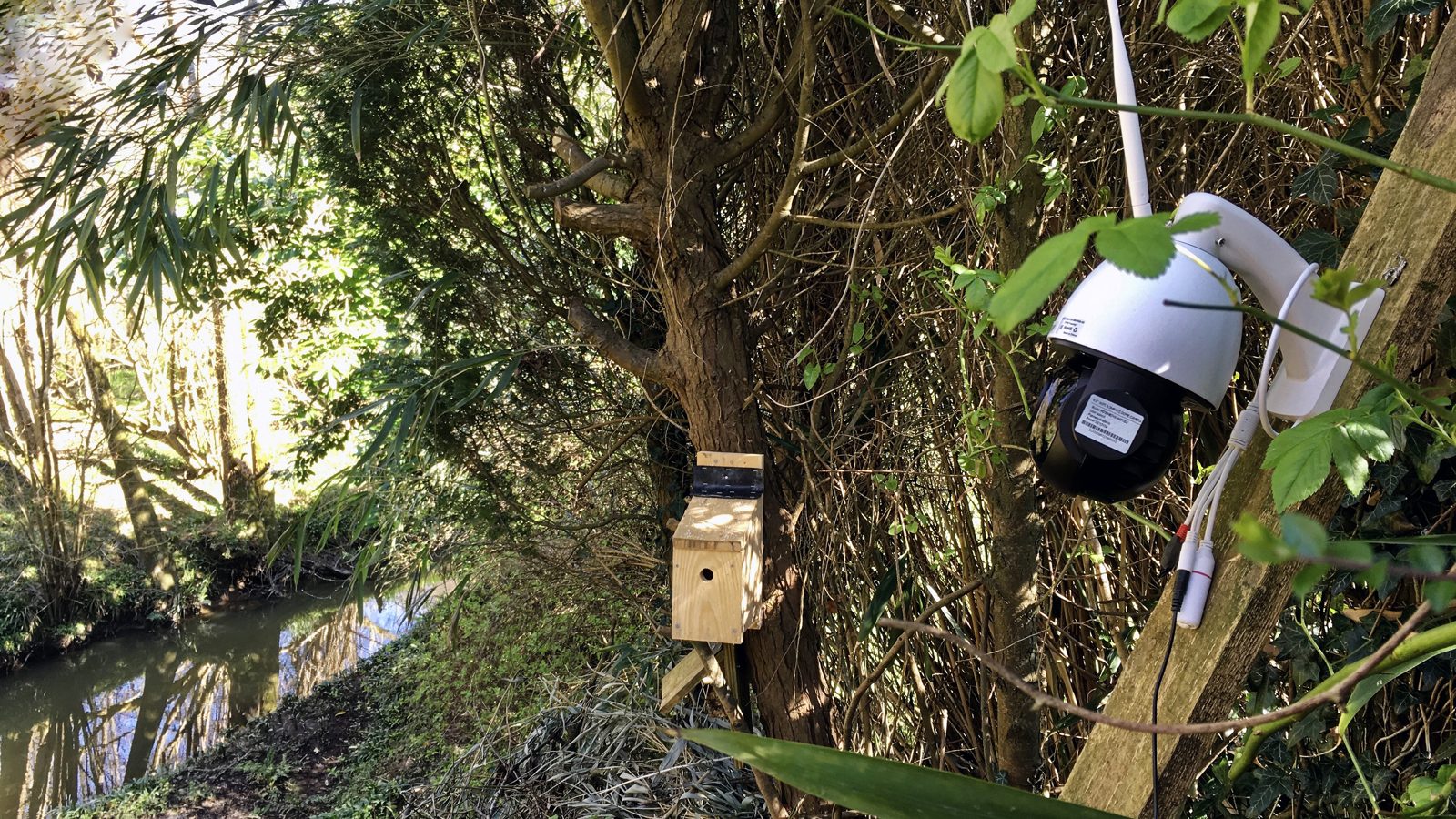
Stream processes video, so there are more moving parts than an image upload: the camera, network, decoder, recognition engine, and output destination must all work together.
Start with one camera. Add more cameras only after confirming the first camera’s connectivity, image quality, and recognition output.
1. Verify the camera feed independently
Open your camera’s RTSP address in a compatible player such as VLC, ideally on the intended Stream host or a machine with equivalent network access.
A typical address has this general shape:
rtsp://USERNAME:PASSWORD@CAMERA_IP:554/STREAM_PATH
This is a placeholder, not a universal camera URL. Replace the entire address with the camera manufacturer’s actual stream URL. Credentials with special characters may need appropriate URL encoding.
Confirm that:
A successful test on your laptop does not prove that the Docker host can reach the camera. Check the actual host’s network and firewall path too.
- Authentication succeeds.
- The video remains stable.
- A passing vehicle is visible in the intended capture area.
- Plate characters are readable in individual frames.
2. Create a persistent Stream folder
In Bash:
mkdir -p "$HOME/plate-recognizer/stream"
export STREAM_DIR="$HOME/plate-recognizer/stream"
Stream mounts this directory at /user-data inside its container. The folder holds configuration and recognition outputs and must be writable.
Do not use a disposable temporary directory. Protect this folder because it can contain camera credentials, plate text, and vehicle images.
3. Load Stream credentials
Obtain the appropriate license and token from your Stream dashboard.
read -r -s -p "API token: " TOKEN
printf '\n'
read -r -s -p "Stream on-premises license key: " LICENSE_KEY
printf '\n'
export TOKEN LICENSE_KEY
These variables replace any SDK credentials previously loaded in the shell. Confirm that you are using the Stream license, not the Snapshot SDK license.
4. Start Stream for the first time
For the compatible Linux Intel x86 setup covered here:
docker pull platerecognizer/alpr-stream

docker run -d -t \
  --name stream \
  --restart unless-stopped \
  --user "$(id -u):$(id -g)" \
  -v "$STREAM_DIR:/user-data" \
  -e LICENSE_KEY \
  -e TOKEN \
  platerecognizer/alpr-stream
The user and group mapping follows the vendor’s Linux example and helps keep the generated files accessible to your host user.
Check startup:
docker logs --tail 100 stream
ls -la "$STREAM_DIR"
The official installation guide states that the first run generates the directory structure and config.ini. Allow initialization time. If the file is missing, inspect the logs, mounted path, credentials, and directory permissions rather than proceeding with an assumed successful installation.
5. Stop Stream and back up its generated configuration
Once config.ini exists:
docker stop stream
cp "$STREAM_DIR/config.ini" "$STREAM_DIR/config.ini.before-camera-edit"
This is a deliberate stop-edit-start workflow. It does not assume that Stream automatically exits after generating its files.
Open the configuration in your preferred text editor. For example, if nano is installed:
nano "$STREAM_DIR/config.ini"6. Configure one camera
Edit the generated camera section rather than blindly appending duplicate sections. Preserve other generated settings unless you have a reason to change them.
The relevant configuration can look like this:
timezone = UTC

[cameras]
  csv_file = $(camera)_%y-%m-%d.csv
  image_format = $(camera)_screenshots/%y-%m-%d/%H-%M-%S.%f.jpg

  [[entrance-camera]]
    active = yes
    url = rtsp://USERNAME:PASSWORD@CAMERA_IP:554/STREAM_PATH
Replace the url value with the verified camera address before starting Stream.
The nesting matters:
If the generated configuration includes sample cameras you do not intend to run, disable or remove those sample camera entries.
This example intentionally enables CSV output and image saving for verification. If you do not need saved images, the configuration reference documents an empty image_format value to disable them:
image_format =
Do not disable images if your intended output integration requires them. Apply an explicit retention policy instead of keeping screenshots indefinitely.
- timezone is a top-level setting. UTC simplifies comparison between systems.
- [cameras] contains settings shared by cameras.
- [[entrance-camera]] defines this individual camera.
- csv_file specifies a camera-and-date-based CSV filename.
- image_format specifies saved image paths.
7. Restart and inspect the logs
Run:
docker start stream
docker logs --follow --tail 100 stream
The vendor requires a restart after configuration edits. Look for camera connection, configuration, decoding, and license errors.
Press Ctrl+C to stop following the log output; this does not stop the detached container.
8. Generate a real recognition event
Arrange an authorized vehicle passage through the camera’s view. Confirm that its plate is readable in the video.
Then inspect output files:
find "$STREAM_DIR" -type f -name '*.csv' -print
Open the relevant CSV and compare the recognized text with the actual plate. Check the camera identity and timestamp as well.
Do not expect a stationary vehicle to be reported continuously. The configuration reference states that static vehicles are ignored by default and provides report_static for use cases requiring different behavior. Duplicate handling and output delays also affect when you see an event.
9. Test beyond one successful pass
Before adding more cameras, check:
Checkpoint: The camera should reconnect after a container restart, and a new authorized passage should produce an output you can compare with the real plate.
References: Stream manual installation, configuration, and system requirements.
- Daytime and nighttime passages.
- Different vehicle positions and expected speeds.
- Repeat visits and your desired duplicate-event behavior.
- Camera disconnect and reconnect recovery.
- Container restart behavior.
- Disk growth and output retention.
6. When to use Stream Cloud instead
Stream Cloud is worth considering when you want hosted video recognition rather than maintaining a local recognition server.
Before choosing it:
A private address such as 192.168.x.x is not directly reachable from a hosted service without an appropriate connectivity arrangement. Avoid exposing camera administration interfaces or opening broad inbound firewall rules just to make the feed accessible.
The vendor’s Stream Cloud getting-started guide explains the licensing and connectivity requirements. Its typical installation guide covers external feed access approaches.
Choose the on-premises workflow above when your priority is a camera feed that remains on your private network, subject to your configured integrations and outbound traffic.
- 1. Obtain a Stream Cloud license, not an on-premises license.
- 2. Confirm that the vendor’s service can reach your RTSP feed using a supported, security-reviewed connection method.
- 3. Check that available upload capacity comfortably supports the configured camera bitrate alongside other network traffic.
- 4. Review data location, contractual terms, retention, and applicable privacy requirements.
- 5. Follow the current Cloud setup workflow and confirm event delivery before connecting downstream automation.
7. Improve license plate recognition quality
If recognition is inconsistent, first inspect the frames reaching the software. Increasing server capacity does not fix unreadable plate characters.
Check motion blur
Pause the video on a moving vehicle. If the characters smear across the frame, review exposure and shutter settings, available lighting, and the capture position.
Check plate size
A wide overview image may show the whole car park while leaving each plate too small to read. Adjust framing or use a dedicated recognition view rather than assuming higher overall resolution will solve the problem.
Check angle and visibility
Steep angles, obstructions, and plates clipped by the image boundary can undermine recognition. Test the actual vehicle path, not just a conveniently parked vehicle.
Check night exposure
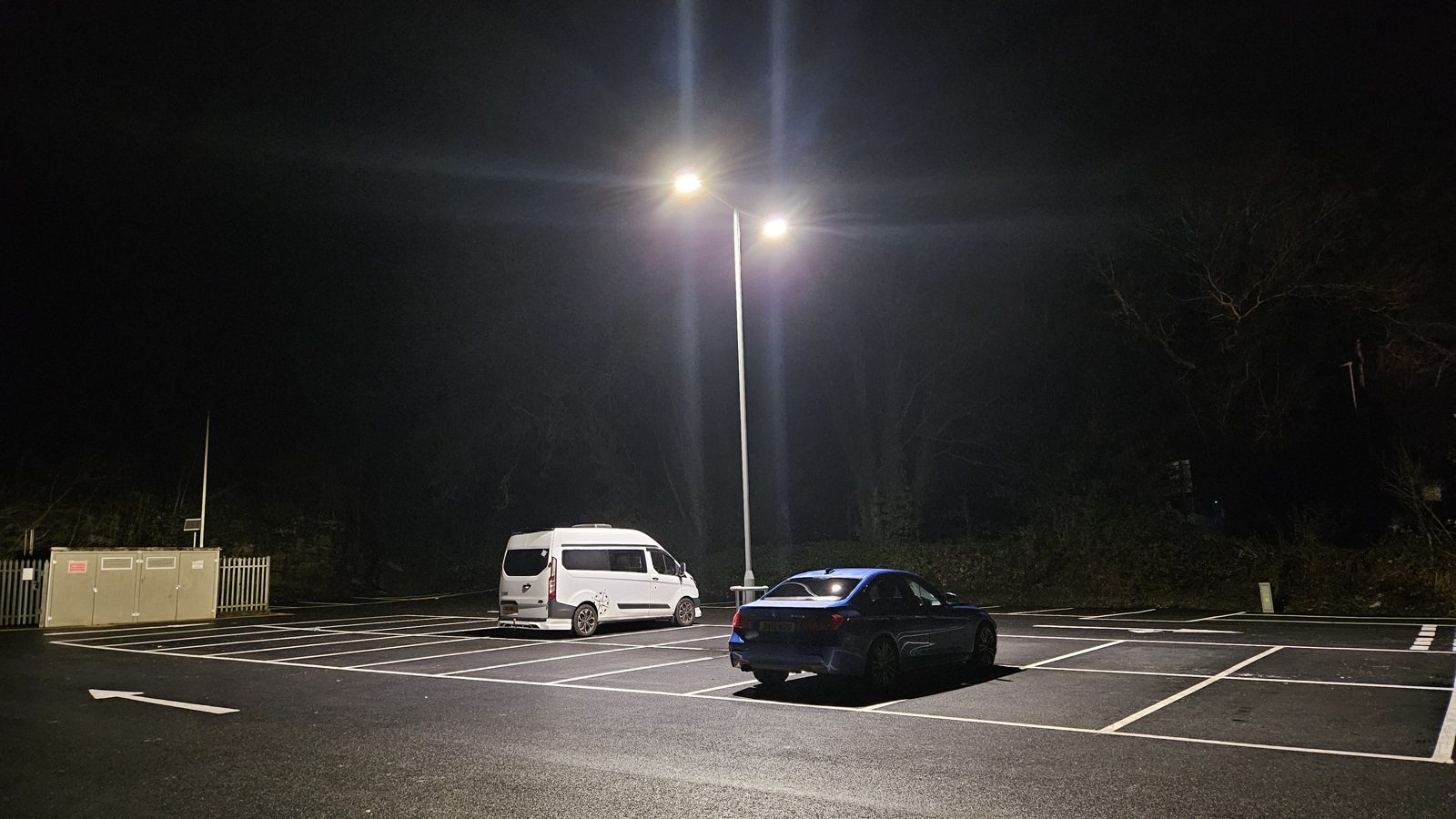
Reflective plates, headlights, and infrared lighting can wash out characters. Evaluate the nighttime image separately from daytime performance.
Change one variable at a time
Keep a small authorized test set covering your real conditions. Record expected plate text, observed output, and capture conditions. Re-test after each change so you can distinguish improvements from ordinary variation.
Avoid promising a fixed accuracy percentage without a defined test method and representative evidence.
8. Connect recognition results to your application
Keep the recognition output separate from the business decision it may trigger.
For Snapshot, your application sends an image and receives a response. For Stream, you can start with local outputs and later implement a supported webhook or other integration using the current documentation.
A practical event record usually needs:
Design your integration to handle missing fields, no detections, repeated events, and temporary downstream failures. Keep credentials and unnecessary personal data out of application logs.
For access control, a recognized plate should be treated as an input to your policy—not an unconditional command to open a barrier. Consider false reads, duplicate plates, allow-list freshness, and safe failure behavior. High-consequence workflows may need another verification factor or human review.
- Camera or source identifier.
- Event timestamp and timezone convention.
- Recognized plate text.
- Available confidence information.
- An image reference only where necessary and permitted.
- A review or processing status.
9. Troubleshoot common Plate Recognizer problems
The Cloud status-code meanings above come from the official API reference. Read the actual error response before deciding how to recover.
- Symptom — First checks — Next action
- Cloud API returns 403 — Token format, account allowance, and subscription access — Verify the token and account status; do not repeatedly retry an invalid credential
- Cloud API returns 413 — Upload size and current account/server limits — Prepare a compliant image without making the plate unreadable
- Cloud API returns 429 — Request rate and concurrency — Queue requests, reduce concurrency, and use controlled backoff
- Request fails before receiving HTTP output — DNS, internet connection, TLS, and timeouts — Diagnose connectivity separately from recognition
- Successful response has no plates — Image readability and request inputs — Try a clear authorized image and compare capture conditions
- Docker daemon is unavailable — Docker service and permissions — Fix Docker before investigating the recognition engine
- SDK container exits — Logs, license, token, host architecture — Correct the specific startup error; avoid deleting licensing data blindly
- Local API refuses the connection — Container state and port mapping — Test from the host; this tutorial binds the service to localhost
- Stream does not generate config.ini — Startup logs, bind mount, and write permissions — Correct the path or permissions and retry initialization
- Stream cannot open RTSP — Full URL, credentials, routing, and camera availability — Validate the same feed from the Stream host’s network
- Stream runs but produces no expected event — Image quality, active camera, output settings, static/duplicate behavior — Test a new moving passage and inspect logs and configured output paths
- Configuration edits have no effect — Correct mounted file and restart — Restart the container after saving the correct config.ini
- Disk usage grows unexpectedly — CSV, images, logs, and retention — Apply a documented cleanup policy and monitor free space
10. Secure and validate your installation
Protect credentials and network access
- Keep API tokens, licenses, and camera passwords out of public repositories and screenshots.
- Restrict access to Docker and configuration folders.
- Use camera accounts with only the permissions required for viewing the feed where supported.
- Keep recognition APIs and camera administration services off the public internet unless protected by a deliberate security design.
- Rotate exposed credentials and review logs for accidental leakage.
Apply privacy and retention controls
Plate information, location, timestamps, and images may constitute personal data depending on the context and jurisdiction. Local processing does not automatically make a deployment legally compliant.
Before operating, determine the applicable lawful basis or authorization, notices, access controls, retention period, processor arrangements, and whether a formal impact assessment is required. Save only what the use case needs.
Complete a practical acceptance test
Do not call the installation ready for production merely because it recognized one plate.
When upgrading, back up configuration, record the existing image version, review vendor instructions, and validate the new version before broad rollout. Follow the vendor’s uninstall and license-transfer instructions before moving a licensed deployment to different hardware.
- Confirm the expected successful image or camera workflow.
- Confirm correct handling of no detection and unsuccessful requests.
- Compare reads against representative authorized vehicles.
- Test daytime, nighttime, and difficult conditions.
- Test camera or network interruptions and recovery.
- Verify configuration persists after a container restart.
- Monitor CPU, memory, disk capacity, and processing delay on the actual deployment host.
- Confirm output retention and deletion work as intended.
- Test downstream duplicate handling and failure behavior.
- Record the tested software version, environment, date, and limitations.
Frequently asked questions
What is the easiest way to start using Plate Recognizer?
For still images, start with Snapshot Cloud: obtain an API token, upload a clear image to the plate-reader endpoint, and inspect the JSON response. It avoids installing a recognition server for the first test.
Do I need Snapshot SDK before installing Stream?
No. They are separate products. Snapshot SDK is for image requests; Stream handles video. Install the product that fits your input and license.
Can Plate Recognizer run locally?
Yes. Snapshot SDK and Stream on-premises run on supported infrastructure. Snapshot documentation states that installation needs internet access and recognition can operate offline afterward. Check the requirements for your chosen product, license, and integrations rather than assuming every workflow is fully offline.
Does every IP camera work with Stream?
Do not assume universal compatibility. Confirm that the camera provides a supported feed, the recognition host can access it, and the image is suitable for plate reading. An IP address alone does not identify a usable stream.
Why does an empty result appear even though the API request succeeded?
HTTP success means the request was processed; it does not guarantee a detected plate. Check blur, plate size, exposure, visibility, and any request configuration that could affect recognition.
Can I use the same license for Stream Cloud and Stream on-premises?
No. The official Cloud documentation states that Stream Cloud requires a separate license from Stream on-premises.
Why is the same parked vehicle not reported repeatedly?
Stream includes static-vehicle and duplicate-event behavior. Review the documented report_static and memory_decay settings before changing them, because repeated events can also affect downstream workflows.
Can I automatically open a gate when a plate is recognized?
Recognition can supply information to an access-control system, but it should not replace authorization and safety controls. Define how uncertain reads, unauthorized vehicles, repeated events, outages, and overrides are handled before enabling automation.
Final setup checklist
A useful Plate Recognizer installation has more than a running container. It has the right product and license, a verified input, understandable recognition output, safe handling of failures, and a security and retention plan.
Start with one image or one camera. Confirm what happened, compare the result with reality, and only then expand the deployment or connect it to business-critical automation.
Official documentation
Photo: ANPR Camera Front, Wikimedia Commons, CC BY 4.0.
Photo: Automated License Plate Reader Camera - New Orleans March 2020, Wikimedia Commons, CC BY 2.0.
Additional photos (Wikimedia Commons): Abigor, CC BY-SA 3.0; Acabashi, CC BY-SA 4.0; Thomas Roberts, CC BY-SA 2.0.
Logo shown for identification only; it belongs to its owner.
- Snapshot SDK getting started
- Snapshot SDK manual installation
- Snapshot API guide and local endpoint
- Snapshot Cloud API reference
- Cloud API schema
- Stream product selection
- Stream on-premises installation
- Stream manual installation
- Stream configuration
- Stream Cloud requirements